What can I do with the option to Import a Course Package in Blackboard Ultra?
You can import a course package from a previous course or from another instructor. When you import content, the content comes over in bulk—all of the content comes over at once. You can also import ZIP files of question pools or other question resources into your Ultra course. Please note that an export/import creates an attendance column that you can’t delete, but no attendance data is added.
Before conducting your Import, please note the following:
- You will not be able to include grades in your import. If you exported a course and included student data, this will not create a copy of student grades. To create a copy of students grades/submissions and your Gradebook, please follow the instructions at our ‘Downloading Grades from the Gradebook’ resource.
- Once you’ve exported the grades, you can import them by following the instructions in our ‘Uploading Grades to Gradebook’ resource.
How do I import a course package?
Watch the following video to learn how to export and import a course package in Blackboard Ultra.
Here are the step-by-step instructions:
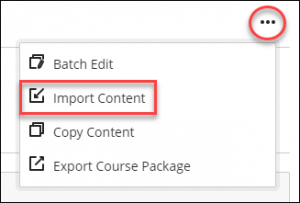
- In the top-right corner of the Course Content area, select More options for course content ellipsis (…) > Import Content.
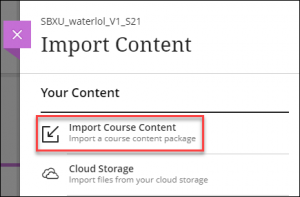
- In the Import Content panel select Import Course Content.
- In the Open File window, locate and select the course package ZIP file you want to import, and then select Open. Blackboard displays an Importing course content message. Blackboard will send an email when the import process is complete.

- After the process is complete, you may need to refresh your page to see the imported content.
Contact the Innovative Learning Support Centre if you need support. We are here to help!