What is a Question Bank?
Instructors can use question banks to create a database of questions they can reuse in multiple assessments. Go to Question Banks to:
- Create new, empty question banks in your Ultra courses.
- View and search for questions within a question bank.
- Add, edit, and delete all aspects of a question within new and existing question banks.
- Copy questions from other banks or assessments into a question bank.
Learn more about question banks in the following video.
How do I create or import a question bank?
- Under the ‘Details & Actions’ menu on the right side of your Blackboard course, find the ‘Manage Banks’ button.
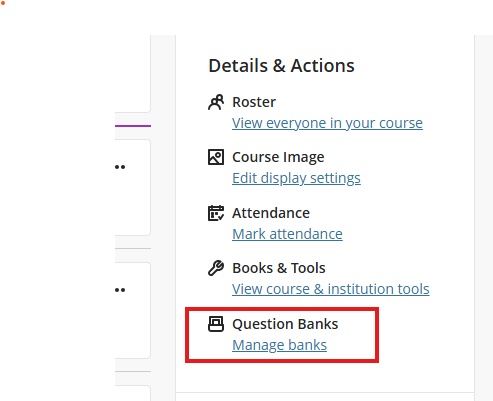
- On the ‘Manage Banks’ page, you have 3 options when you click on the ‘plus’ sign:
- Create a New Question Bank manually
- Auto-Generate a Question Bank using the AI Design Assistant
- Import a Question Bank from File

How do I create a New Question Bank manually?
- On the ‘Manage Banks’ page, select ‘New’.
- Make sure to click on and edit the title and description of the question bank and change them so that you remember what each question bank contains.
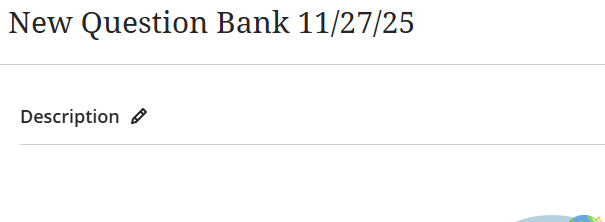
- From the New Question Bank page, you can click in the ‘+’ icon in the middle of the page, and select any of the question types you would like to generate.
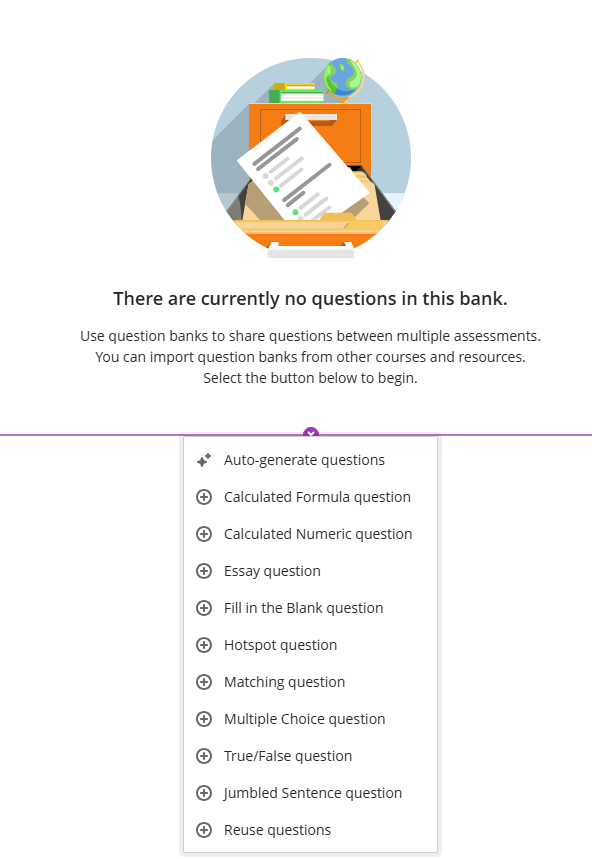
- Consider learning more about the different question types available to you at Anthology’s Blackboard Help page here.
- Whenever you add a question, you have the following options:
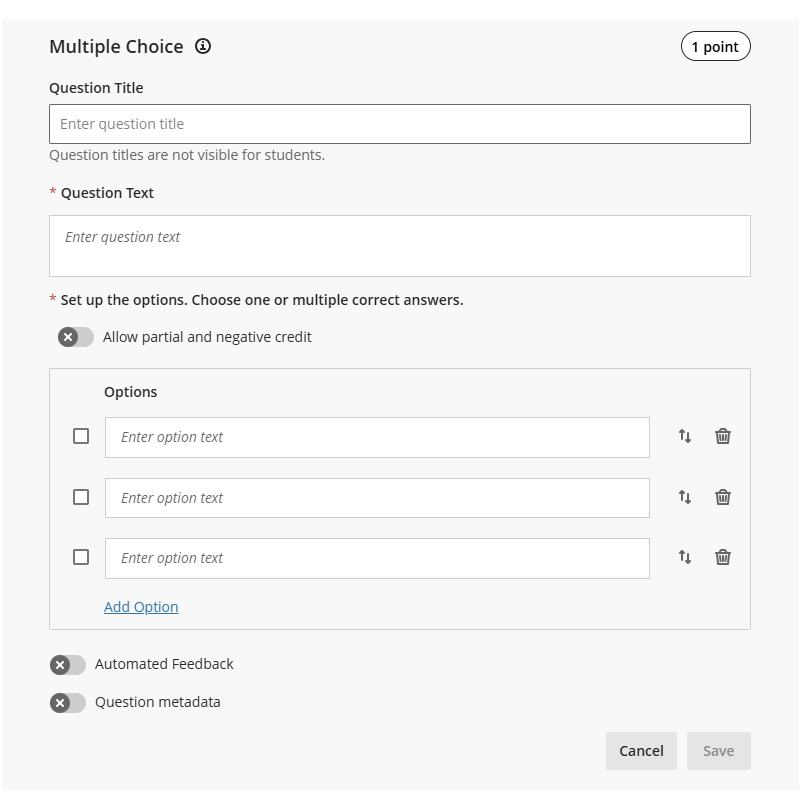
- The question title
- Question titles are not visible for students. This is to help you find questions and/or topics easier.
- The question text
- This contains the actual question that students will need to answer during their test.
- Allowing partial or negative credit
- You can assign certain options to have partial credit, or some options to have negative credit.
- The options for the answers
- These will be the options/answers for the question.
- Automated Feedback
- You can add feedback for the correct or incorrect question. We recommend using this for formative quizzes and assessments, rather than for summative assessments like tests or exams.
- and Question Metadata.
- These are tags that you can add into questions to make them easily searchable/filterable in the future.
- The question title
How do I Auto-Generate a Question Bank using the AI Design Assistant?
The AI Design Assistant can build question banks based on multiple content items in your course to save yourself time while building out question banks. Learn more in the video below or in the steps that follow.
- On the ‘Manage Banks’ page, click on the ‘plus’ icon, and select ‘Auto-generate’ from the drop-down menu.
- You have several ways to define the questions that the AI Design Assistant generates.
- Enter a description (limited to 2000 characters) to narrow the focus of the questions
- Adjust the complexity of the questions
- Select the number of questions
- Select Advanced options to change the output language
You can select from the following question types:
- Essay
- Fill in the blank
- Matching
- Multiple choice
- True/False
The “Inspire me!” question type suggests a variety of question types to give you more options.

Optionally, you can select which course items you’d like the AI Design Assistant to provide context for questions. Select Select course items to start.
Select any course content item to include it in the context for your question.

- Once you’ve finalized your settings, select Generate. Choose the questions that you’d like to add to your Question Bank, then select Add to Question Bank.
- Learn more about using the AI Design Assistant and creating Question Banks by following the instructions and guidance at our “Generate Question Banks: Blackboard’s AI Design Assistant” article.
How do I import a Question Bank?
You can import a bank if you have one from a required textbook that shares question banks with you, or for importing exported banks from previous or other courses. Learn more in the video that follows or in the steps that are after the video.
- When in the ‘Manage Banks’ menu, select the ‘Import’ option.
- You will be prompted to select the Question Bank from your computer; this file should be a .zip file.
- As the file imports, you can view the supported question types. You’ll receive a success message when the file imports successfully. You’ll also receive a message if the file or some question types weren’t uploaded.
- You may need to refresh the page to see these messages if they don’t appear after a longer period of time (a minute or two).
- The most recently imported bank appears first on the list. An exclamation icon appears in banks where one or more unsupported questions were removed.

- Please note that these are the supported question types appear in a question bank after import:
- Calculated Formula
- Calculated numeric
- Essay
- Fill in the Blank
- Fill in Multiple Blanks
- Hot Spot
- Likert
- Matching
- Multiple Choice
- Multiple Answer
- True/False
- You may receive some messages after an import, and these are what they mean:
- Unsupported question types were removed: Only supported questions in this file appear in the Question Banks section on the Reuse Questions page.
- The bank wasn’t imported as no compatible questions were found: No questions in this file appear in the Question Banks section on the Reuse Questions page. The question bank isn’t added to the Question Banks page.
Contact the Innovative Learning Support Centre if you need support. We are here to help!