What is the Respondus Lockdown Browser?
LockDown Browser is a custom browser that locks down the testing environment within a learning management system. The purpose of the Lockdown Browser is to lock down student computers to uphold academic integrity while taking a test in Blackboard.
The following are troubleshooting tips to help you avoid issues with Respondus Lockdown Browser on the day of your midterm.
- If you’ve copied a test that uses Respondus from a previous course (using the “Copy Items” option to transfer content from the previous course), the instructor must go into the new course, access each of the exam settings, and select the Respondus LockDown Browser option. This will redirect them to the Respondus settings page; without completing this step, students will not be able to take the exams in the new course.
- If this is not done, students will see the following error message when trying to access the test:
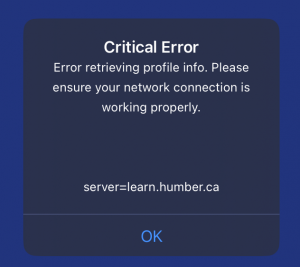
- To resolve this issue, instructors must:
- Open LockDown Browser Dashboard in the course
- Check if any errors appear for the quiz (example below)
- Click Fix it if prompted
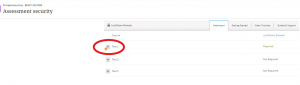
- This error happens because Respondus servers don’t fully recognize the course or its quiz/assignment settings. Completing the steps outlined above ensure that these access errors do not occur.
- If this is not done, students will see the following error message when trying to access the test:
- It is recommended that instructors create a practice formative assessment with Respondus Lockdown Browser, and ask students to complete it before the actual test. By doing so, students will become familiar with the process, and the Lockdown Browser will already be installed on their device prior to the test, and making sure that everything runs smoothly on the instructor’s end, as well.
If you need further support, please review the information at Innovative Learning’s ‘Using the Respondus LockDown Browser‘ resource.
Contact the Innovative Learning Support Centre if you need support. We are here to help!