What is Blackboard’s AI Design Assistant?
Blackboard Ultra has integrated AI into a tool known as the AI Design Assistant, to assist instructors with setting up and creating a course. The AI Design Assistant can:
- Generate Modules and Course Structures
- Generate Journal, Discussion and Assignment topics
- Generate Rubrics
- Generate Test Questions
- Generate Question Banks
- Generate or Find Relevant Images
- Generate Document Structure
Before and after creating content using the AI Design Assistant, please note: Faculty must review all AI-generated content before use, because AI may generate inaccurate or culturally insensitive information!
Is the AI Design Assistant Safe to Use?
The AI Design Assistant operates under the Microsoft Responsible AI frameworkEven though course content and information are used to inform and improve the AI Design Assistant, course data remains safeguarded and stays within Humber’s protected digital space, and isn’t shared externally outside your Blackboard course environment (Data Privacy Approach | Anthology). For more information about Anthology’s AI Approach, read their Trust Worthy AI Approach, which includes the following principles:
- humans in control,
- fairness,
- privacy,
- security, and
- safety.
How do I generate Document Layouts in Blackboard?
You can use the AI Design Assistant to design attractive layouts for Documents that include images, knowledge checks, and helpful headings. This saves time and improves engagement with your content; learn more about AI Generated Document Layouts on Blackboard’s website, or watch the video that follows:
Here are the step-by-step instructions:
- Make sure to add content to your Blackboard Document first. Learn more by reading through our ‘Creating a Document in Blackboard Ultra’ resource.
- When you’re inside your Document, select Edit Document to enter the editing mode. Then, select the Suggest Document Layout button.

- You control whether the AI Design Assistant includes images. You can use stock images from Unsplash or generate images (Innovative Learning does not recommend generating images. Please use Unsplash or find other images for your document content). You can also select or deselect the option to include knowledge checks.

- Select Generate when you’ve finalized your settings. Your Document now has a new layout, including any extra features you selected.
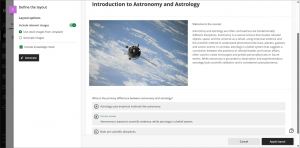
- You may click Generate numerous times until you are satisfied with the results. Select Apply layout to import the new layout into your Document, where you have the option to edit the individual blocks. Be sure to save your changes prior to navigating out of your Document.
What are Innovative Learning’s recommendations for using the document structure generation feature in Blackboard’s AI Design Assistant?
- The AI Design Assistant does NOT generate new course content, but rather is designed to use existing content within your Document to:
- Re-format and organize elements of your document
- Generate images
- Suggest knowledge checks
- We advise against using the AI-generated images. We encountered a variety of issues including culturally inappropriate images, disproportional body parts in people, and incorrect/odd images.
- Please replace it with image files selected from Unsplash or provide your own image files instead.
- Please also note that the AI Design Assistant might not find or add any relevant images when creating a Document structure. If you would still like to add images into your Document, you can do that manually; find out more at our ‘Creating a Document in Blackboard Ultra’ resource.
- To get started with the Documents feature, we recommend uploading relevant word documents, PowerPoint slides and other teaching. Learn more by reading through our ‘Creating a Document in Blackboard Ultra’ resource.
- The structure generation may take some time, so please be patient!
- Knowledge checks are a great way to make online learning more of an active process; add them into your documents where appropriate to split up content and to help students track their learning formatively!
Contact the Innovative Learning Support Centre if you need support. We are here to help!