Why am I experiencing an issue with uploading or creating my course content?
Are my files too large? Do I not have enough space in my course?
This article serves as a troubleshooting guide to help instructors manage issues relating to their course or file sizes to prevent issues when trying to import, upload or create course content.
Please keep in mind that courses in Blackboard have a 2.5GB storage limit, and a 1GB upload limit for individual files (like .zip files containing exported course content or SCORM packages). Follow the instructions below to ensure that your course content follows these limits!
It is important to note that large course packages can cause errors or slow performance, so keeping files small and organized provides a usability benefit, too. The possible reasons for excessive course size are as follows:
- Unused files are taking up space.
- Courses contain unnecessary content before an export or course copy.
- SCORM packages include too many uploaded videos.
Scenario 1: Unused Files Are Taking Up Space
If your course contains files that are no longer in use, they still contribute to the overall course size. To resolve this:
- Use the Unused Files Management Tool. You can easily locate and delete unused course files in your course. Select the ellipsis (three dots) menu at the top of the Course Content page and then select Unused Files.
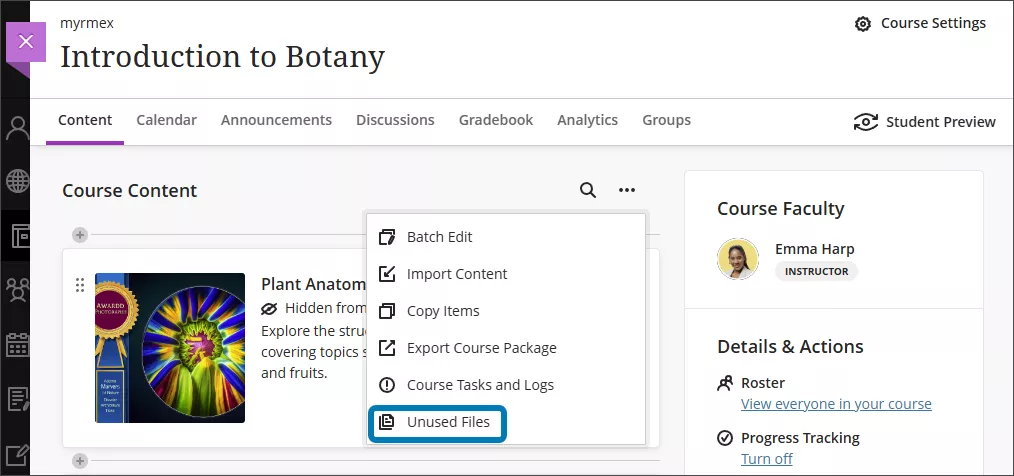
- There are two views available on the Unused Files page:
-
- Unused files (default view): displays files that are not currently linked to content in your course, or
- All files: this displays all files in your course. The file name, upload date, and file size are displayed along with an option to download a copy of the local file.

-
- Review both pages, then select the files you want to delete and select Delete Files.
Make sure to regularly review course files. At key times during the semester (Reading week, before the end of term or before startup), make sure to delete outdated or duplicate files from your course content to keep your course clean.
Scenario 2: Cleaning Up Before Export or Copy
Before exporting content or copying from one course to another:
- Remove unnecessary materials, old assessments, and unused folders using the instructions for finding and removing unused files above.
- Avoid using large media files directly in Blackboard.
- Instead, you might use Microsoft OneDrive or Microsoft Stream and share the link to your media from there.
- Check for content that is hidden to students that may still be included in the export and delete it if it is not being used.
A clean course structure ensures faster export and fewer errors when importing or copying the course.
Scenario 3: SCORM Packages
If you are building courses using SCORM packages:
- Ensure SCORM packages do not contain excessive video files.
- Host large videos externally (e.g., on a streaming platform) and link them instead of uploading directly to the course.
Contact the Innovative Learning Support Centre if you need support. We are here to help!