These are the highlights of this month’s improved features in Blackboard Ultra that will be live Thursday, April 2nd. The most relevant updates are related to a few key areas:
- Communication & Collaboration
- Assignments & Tests
Communication and Collaboration
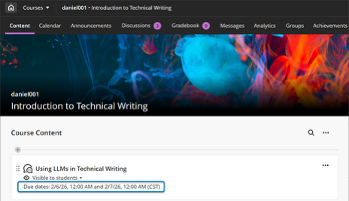
Review both sets of Discussion due dates across multiple views in Blackboard
When instructors create a discussion with two due dates and participation requirements, both sets of requirements appear on the Course Content page, Discussion pages, the Gradebook student and instructor views, and the instructor’s Discussion analysis panel. Students can track expectations throughout the workflow without navigating back to the discussion itself.
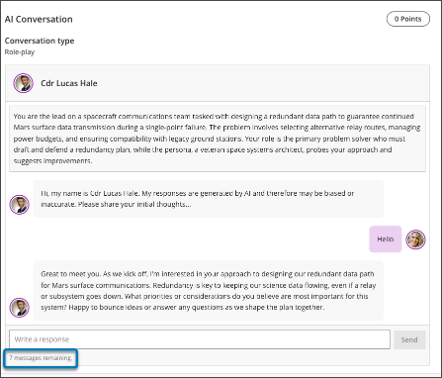
AI Conversation: Use Message Limits
Instructors can now guide the length of AI‑supported conversations, including Socratic Questioning, by setting message limits. These controls help students understand when to complete an interaction and keep conversations focused on the intended learning activity.
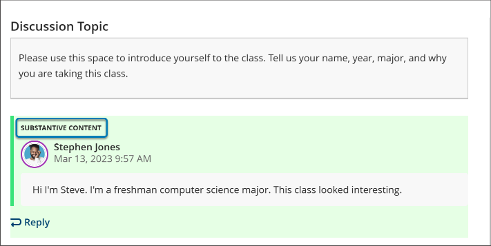
Add Substantive and Non‑substantive Content labels in instructor discussion analysis
When instructors review a student’s posts and replies, the instructor analysis page displays text labels with highlighted content. Green highlights include a Substantive Content label. Red highlights include a Non‑substantive Content label.
Assignments & Tests
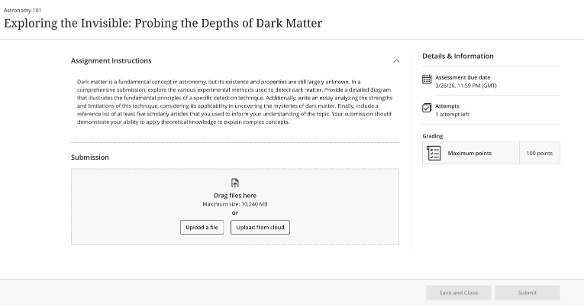
Specify assignment submission type
When creating or editing an assignment, instructors can define the expected submission type to guide how students submit their work. Selecting a specific submission type streamlines the student experience and reduces ambiguity about what is required.
Instructors can select one or more expected submission types when configuring an assignment:
- File upload
- Text entry
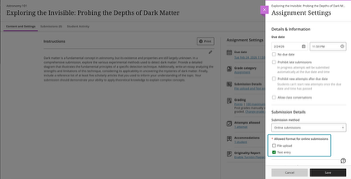
By default, File upload and Text entry are both selected. The selected submission type is visible in assignment settings and student‑facing details. Instructors can change the selected submission type until students have started submitting attempts.
Contact the Innovative Learning Support Centre if you need support. We are here to help!