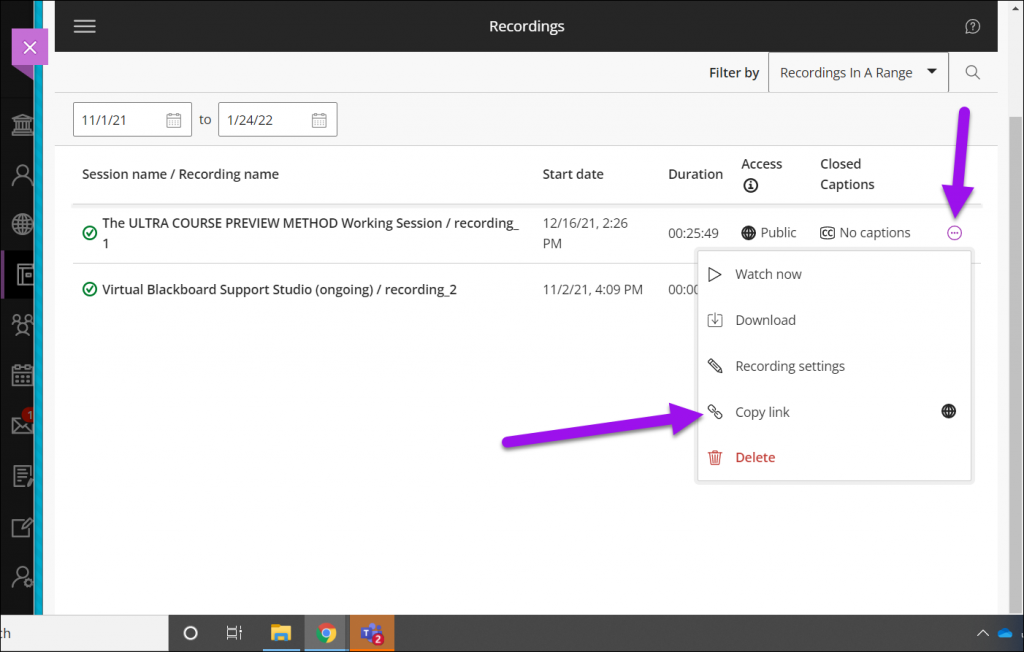
By default, recordings are available to students in the course or section within which the recording was made. If you want to share a recording with people who are not enrolled in the course, such as students in a different section, you can share a link to the recording.
IMPORTANT: Please do not download your recordings and upload them to Blackboard. The files are large, and they do not stream well for students on various devices. Also they take up a lot of space in your course. If you want to edit your recording, or you want to share a recording with sensitive or confidential content, please use Panopto.
Locating Collaborate Recordings
- Under the Details & Actions menu, select the three dots to the right of Blackboard Collaborate and choose View all recordings. Note: Depending on the size of your recording, and the demand on the servers, your recording may take a few minutes to a couple of hours to become available.

Sharing Collaborate Ultra Recordings
- Locate the recording you want to share.
- At the end of the recording row, select the Recording Options button and then Copy link.