How do I add links into my Blackboard Ultra course?
You can share links to your files in OneDrive, Panopto, and other web-based tools directly within your Blackboard Ultra course. Watch the video to learn more:
How do I copy a link from my OneDrive?
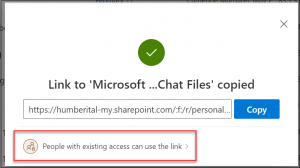
- Select a file or folder you want to share, and select Copy link.

- A link to the file is created. To change the link settings, select People with existing access can use the link.
- In Link Settings:
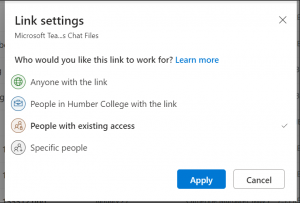
a. Select People in Humber College with the link. Students will need to be logged in to see the file. Note: If you want any external users to access this link, you can select “Anyone with this link.”
b. Clear the Allow editing checkbox.
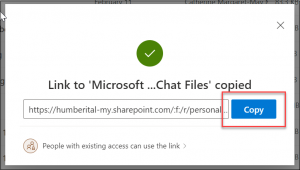
d. Select Apply. - Click Copy. Then, close the window
How do I share the copied link from OneDrive into Blackboard?
- Go to your Blackboard course.
- Click
 wherever you want to share your link.
 - Click Create
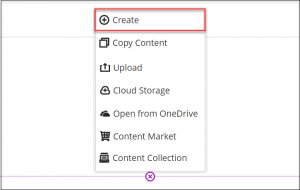
- Select Link
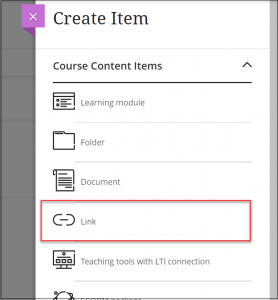
- In the Link window:
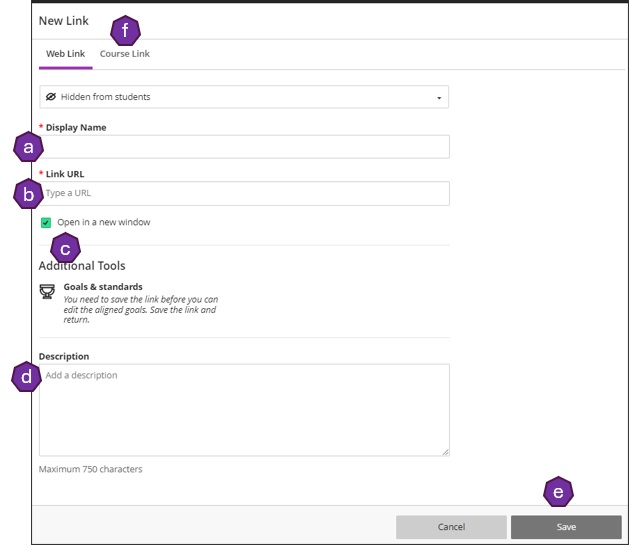
a. Type in name of the link
b. Press Ctrl + V to paste the link you copied.
c. You can either open in a new window or open within the Blackboard
d. In Link Text, provide a descriptive name so students know what this link is for.
e. Click Save. Your file appears as a link. Note:If you edit the file in OneDrive, it will be updated to Blackboard automatically.
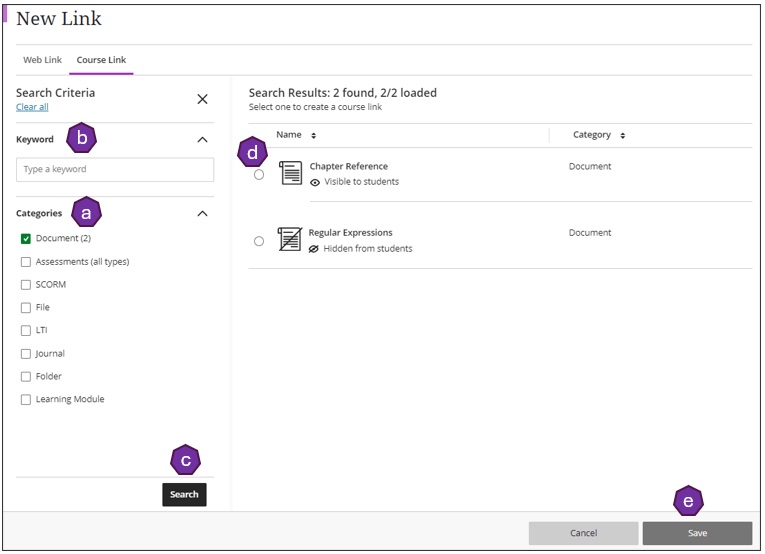
f. There is also an option to link a course item. (a. select categories, b. type in a keyword, c. press “Search”, d. select the item from the list, then e. save.)
Contact the Innovative Learning Support Centre if you need support. We are here to help!