What is the Gradebook in Blackboard?
Use your course’s Gradebook page to quickly access its coursework and enrolled students. You can customize the gradebook, search submissions, and upload or download grades. Learn more about the Gradebook in the video below:
How do I navigate the Gradebook in Blackboard?
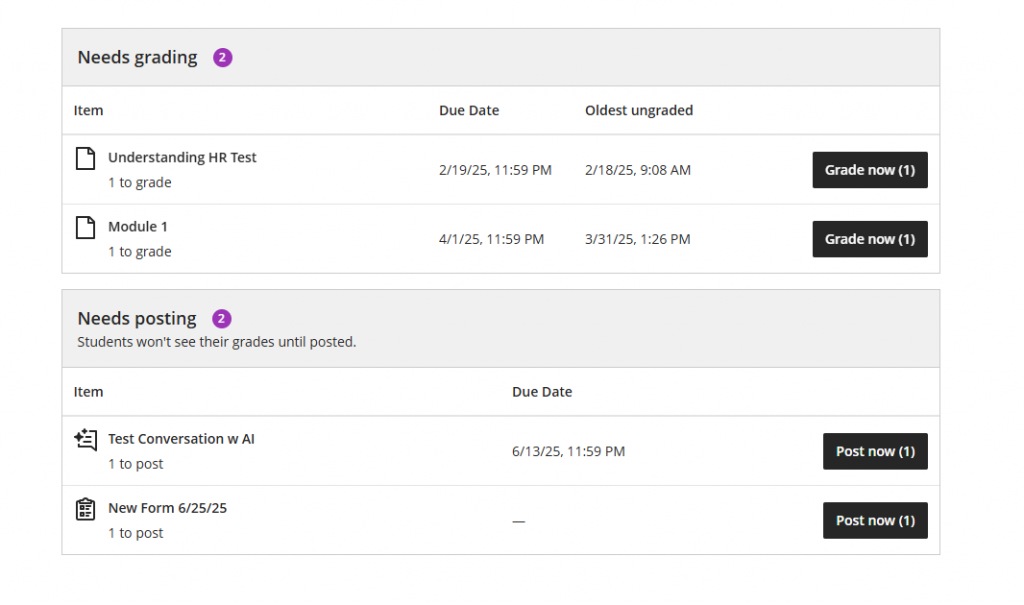
When you first enter the Gradebook tab, you will be brought to the ‘Overview’ area. It includes two main areas;
- Needs grading
- Needs grading lists submissions ready for grading with the oldest ungraded submissions at the top of the list, allowing you to prioritize grading tasks. Select Grade now to open the submission and begin grading.
- Needs Posting
- Needs posting lists graded assessments that are ready to be posted. Select Post now to immediately post the graded assessment.
Once you move away from the Overview tab, the following image and corresponding letters are described below.
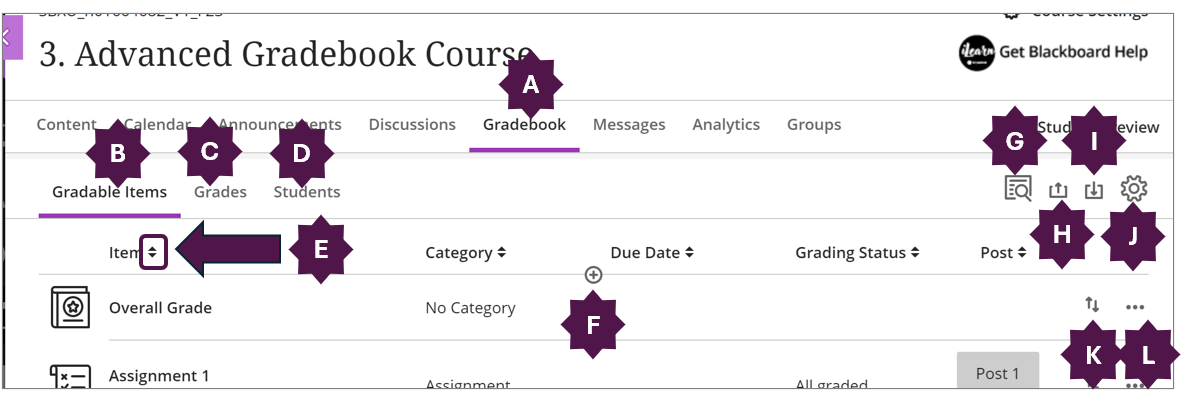
A. Accessing the Course Gradebook. In the top right corner locate the navigation bar and select the Gradebook icon to view all the coursework that’s specific to the course you’re in.
B. Gradable Items Tab. The Gradable Items list is your default view of the course Gradebook. You can view all the coursework you’ve assigned and your grading progress. You can also access the management functions. You can select an item’s title to open a new layer. See whose submissions need grading and who hasn’t received their grades yet.
C. Grades view Tab. Change from list view to the student grid view. In this view, you can see each student and their grade on each assessment. From each assessment column, you can send reminders, view submissions, analyze questions, download submissions, view statistics or delete the assessment.

D. Students Tab. View a list of your students along with columns for Student ID, Username, Last Access, and Overall Grade (if you have it configured). Select student names to view their submissions on their individual Student Grades page. In the Status column, you can see completed work, items that need grading, and grades you need to post.
E. Sort. Gradable items can be sorted by Item names, Category, Due Date, Grading Status, and Post in Gradable Items Tab. In the Students Tabs, students can be sorted by Student ID, Username, Last Access, and Overall Grade. In Student grid view, students can be sorted by each gradable item.
F. Add a row. Select the plus sign wherever you want to add a row:
- Add Item: Add a row for coursework, such as a participation grade. Your title is limited to 255 characters. Choose the grade unit, such as points or letters.
- Add Calculation: Add a row for a calculation, such as an average assignments grade.
- Add Total Calculation: Add a row for Total Calculation which includes dropping scores among particular category and other calculations not available in Calculation.
- Add Attendance: Add a row for attendance. After you add attendance, the add option won’t appear in the menu again.
G. Submission Receipt. You can search submissions by Submission Receipt Number.
H. Upload Gradebook. You can also upload a grade file you worked on offline and update your Gradebook.
I. Download Gradebook. You can download the full Gradebook or select rows from your Ultra courses. You choose whether to save the file to your device or the Content Collection. You can import your downloaded file into an application such as Microsoft Excel to do statistical analysis.
J. Settings. You can manage Grade Schemas and Grade Categories, add Automatic Zeros, establish Student Performance settings, and add a rubric.
K. Move Items. Drag the item to change order.
L. More Options. Select the 3 dots to edit or delete the row.
Contact the Innovative Learning Support Centre if you need support. We are here to help!