Announcements

When:
August 14, 2025

Effective August 18, Capital Development & Facilities Managment's central and emergency phone number is changing. 

To report emergency issues around campus (spills, power outages, etc.), we can be reached at 416.675.5008 and CQ - Facilities (MS teams).

For non-emergency issues, please submit a work order through our website.

General inquires can be emailed to facilities@humber.ca.

When:
August 14, 2025
Contact:
Chris Mallory

We are excited to share that starting August 15, 2025, Humber will launch a new workflow that accelerates system access (Microsoft 365 and Blackboard) for part-time faculty

This enhancement is the result of a collaborative effort between People(s) & Culture (P&C) and the Digital Identity (DI) teams, focused on improving the onboarding experience by ensuring part-time faculty have the system access they need to support students.  

Why This Matters and What This Means: 

  • Part-time faculty will receive earlier access to Microsoft 365 and Blackboard. 
  • Account setup now begins shortly after an employment offer is accepted, granting  access to required systems before the P&C onboarding is complete.  
  • Note: Access to HRMS will remain the same (no access until the start date of the contract). 
  • Reduces support tickets and confusion during peak hiring periods. 
  • Supports a better first-day experience for part-time faculty and students. 

Contact HelloDI@humber.ca if there are any questions.  

Note: There is no change for the part-time faculty hired through the University of Guelph to teach courses at the University of Guelph-Humber. This change only applies to those hired through Humber’s HRMS. 

In Case You Missed It: What is Digital Identity (DI)? 

The Digital Student Experience (DSX) Program emerged from the 2023-2026 Digital Campus Plans. 

The DSX Program is comprised of Digital Identity, Digital Experience Platform and Enrolment and Admissions Rethinking. These three initiatives integrate and support each other in delivering on the promise of simplifying and personalizing the Humber student journey from prospect to alumni. 

Digital Identity (DI)  

Digital Identity (DI) is a single online Humber identity where an individual is known, welcomed and secure in every online interaction.

Digital Identity builds a profile that retains the user’s identity preferences, and delivers a unique personalized experience. DI includes:  

  • One single identity throughout the user’s entire Humber journey  
  • Access automatically evolves with roles  
  • Single, universal and evolving profile that is consistently available across all applications  

Learn more about Digital Identity in the Digital Campus Plan.

When:
August 14, 2025
Contact:
Robert Maniscole
Posters/Attachments: Event Poster
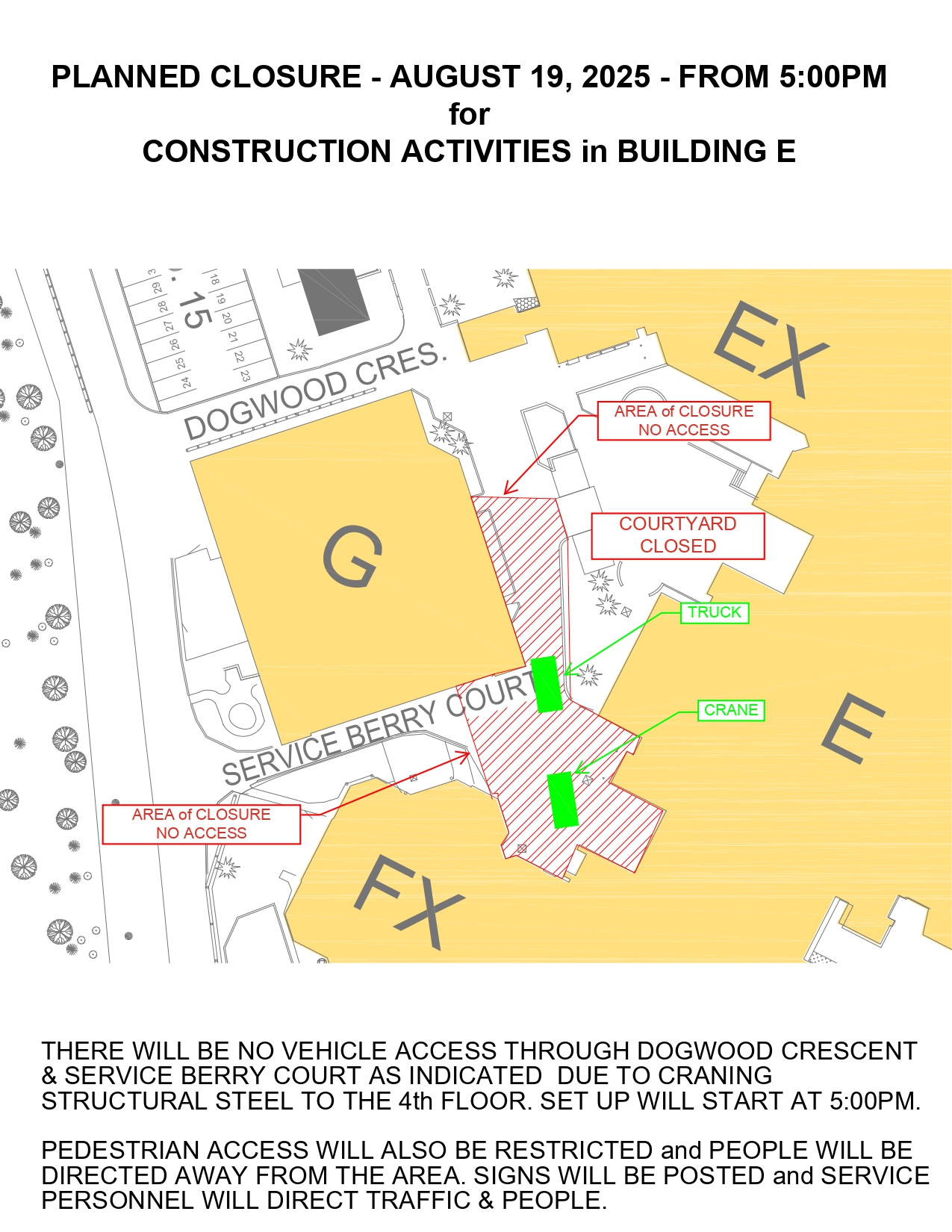
Map of North Campus closures

Please be advised that construction activities on August 19, 2025 will require the closure of exterior areas as shown on the attached two plans.

There will be no vehicular or pedestrian traffic in the area between Buildings E, EX, FX and G, including the courtyard from 5 p.m.

The area is required to be vacant as our contractor will be lifting structural steel up to the 4th floor of Building E.

When:
August 13, 2025

To the Humber Community,

The College Employer Council has posted "Bargaining Update - A strike cannot make unrealistic demands affordable" on its site. 

The College Employer Council (CEC) is the government mandated bargaining agent for the 24 Ontario publicly funded Colleges that negotiate collective agreements with unionized staff. The following information is being distributed on behalf of the CEC.

When:
August 13, 2025
Posters/Attachments: Event Poster
Pride Flag crosswalk at Lakeshore Campus.

The Office of Equity, Diversity, Inclusion & Belonging (EDIB) is proud to share that a new Pride Flag crosswalk has been installed at the Humber Cultural Hub at Lakeshore Campus, serving as a vibrant and visible symbol of our commitment to equity, diversity, inclusion and belonging.

The Pride Flag crosswalk is more than a beautiful addition to our campus, it’s a daily reminder that Humber is “all in” when it comes to fostering a community where everyone feels safe, valued and celebrated. Its presence affirms our dedication to creating spaces where 2SLGBTQIA+ students, staff, faculty and community members know they belong.

Pride Through Collective Action

The new Pride Flag crosswalk is more than a visual landmark, it’s a call to action. It represents our shared responsibility to keep showing up for 2SLGBTQIA+ inclusion every day, not just in June. We invite you to carry the spirit of Pride forward by engaging in meaningful ways that strengthen belonging across our campuses:

Together, we’re shaping a campus where inclusion is reflected in our spaces, our actions, and our community every day.

When:
August 11, 2025

Fall 2025 Registration is Open

Spark your child's creativity and passion for music with our engaging music classes designed for kids and youth. Whether they are just starting out or have some experience with a musical instrument, our classes offer a fun and educational experience that will help them develop their musical skills while having a great time.

Registration is now open for the fall term (September 13 to December 13, running on Saturdays) for the following courses:

  • Private Lessons: 30 or 60 minutes for the instrument of your choice (all ages)
  • Group Classes: Currently we are offering Children’s Musicianship (ages 3-10) and Intro to Piano (ages 6-12)
  • Ensembles: The ensembles introduce students to the joy of playing and improvising in the jazz idiom, helping them build the skills required to perform this challenging and rewarding music.

Register now

Don't miss out on this opportunity for your child to explore their musical talents. Sign up now to secure a spot!

Humber staff, family and friends can enjoy a 20 per cent discount on these courses:

  • CMCE 025-011 Music - Children's Musicianship
  • CMCE 032-002 Introduction to Piano Playing (Group Class)

Use code Music20. Valid until September 6.

If you have any questions, please email communitymusic@humber.ca.

When:
August 11, 2025

Planning an event on campus?

Make it greener with the Sustainable Event Guide. Designed for use across all event types, it supports organizers in aligning with sustainability practices while delivering high-quality experiences. Download the guide and start planning with purpose. 

Access the Sustainable Supplier List, which offers a selection of stores that prioritize environmental and social responsibility. 

Both documents can be found on the Sustainability website.

When:
August 11, 2025
Contact:
Humber Athletics
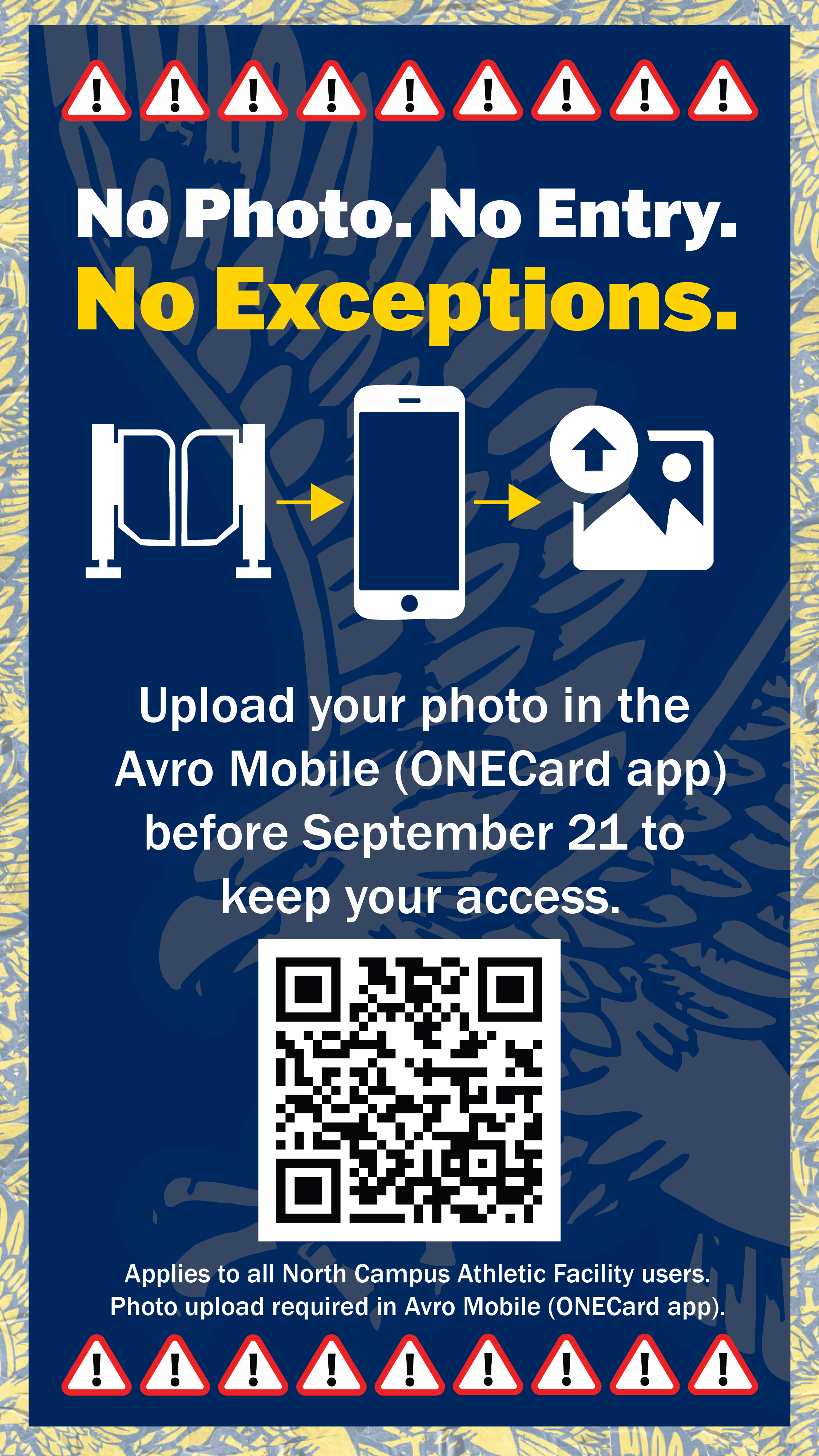
Poster with warning icons stating: “No Photo. No Entry. No Exceptions.” Requires users to upload a photo in the ONECard (Avro Mobile) app before September 21. Includes QR code and applies to all North Campus Athletic Facility users.

As part of Humber’s official Photo Identification Policy, all users of the North Campus athletic facilities will now be required to upload a photo to their ONECard (Avro Mobile) profile in order to maintain access to gyms, fitness spaces and athletics facilities.

This update supports Humber’s commitment to safety and secure access in high-traffic and higher-risk areas.

Deadline to upload: Sunday, September 21, 2025
Enforcement begins: Monday, September 22, 2025
Upload link: humber.ca/onecard/myphoto.html

Why This Is Required

In accordance with the Photo Identification Policy, individuals may be required by a duly authorized Humber or Guelph-Humber official to present photo identification via ONECard at any time, including:

“to access campus or enter a secure/controlled campus area”
(Photo Identification Policy, Section 2 – Use)
https://humber.ca/legal-and-risk-management/policies/general-administration/photo-identification-policy.html

Athletics facilities meet this criteria due to:

  • Controlled entry via access gates
  • High volume of student, staff, and community use
  • Supervised physical activity with elevated risk levels

In emergency situations (e.g., medical events), having a verified photo on file supports our Emergency Action Plan (EAP) by enabling quick, accurate identification and coordination with public safety and health personnel.

What Users Need to Do:

  • Visit humber.ca/onecard/myphoto.html
  • Upload a passport-style photo and government-issued ID for one-time verification
  • Approval is typically completed within 24 hours

After September 21, individuals without an approved photo will be denied access at the gate. Staff will not be able to override the system.

Questions?

For Athletics-related access questions: athletic.office@humber.ca

For ONECard, photo, or Avro app support: Contact the Humber IT Support Centre humber.ca/techtalk

Thank you for doing your part to support a safe and secure experience for all users.

When:
August 11, 2025

Here are the highlights of faculty questions from July. These are not necessarily the most frequently asked questions, but helpful for all faculty members to know!

Question: How can I ensure academic integrity on my final assessments in Blackboard?

Answer:

Innovative Learning recommends using Blackboard’s features to secure your assessment in lower stakes assessment. There are a few ways you can secure your tests in Blackboard, without the use of any additional tools:

ol {margin-bottom:0in;margin-top:0in;}ul {margin-bottom:0in;margin-top:0in;}li {margin-top:.0in;margin-bottom:8pt;}ol.scriptor-listCounterResetlist!list-d6ede680-caa3-42dd-ba3f-7fbe93cecd590 {counter-reset: section;}ol.scriptor-listCounterlist!list-d6ede680-caa3-42dd-ba3f-7fbe93cecd590 {list-style-type:bullet;}li.listItemlist!list-d6ede680-caa3-42dd-ba3f-7fbe93cecd590::before {counter-increment: section;content: none; display: inline-block;}

Instructors can also use Respondus Lockdown Browser. Here are some of its key features:

ol {margin-bottom:0in;margin-top:0in;}ul {margin-bottom:0in;margin-top:0in;}li {margin-top:.0in;margin-bottom:8pt;}ol.scriptor-listCounterResetlist!list-d6ede680-caa3-42dd-ba3f-7fbe93cecd591 {counter-reset: section;}ol.scriptor-listCounterlist!list-d6ede680-caa3-42dd-ba3f-7fbe93cecd591 {list-style-type:bullet;}li.listItemlist!list-d6ede680-caa3-42dd-ba3f-7fbe93cecd591::before {counter-increment: section;content: none; display: inline-block;}

  • Assessments are displayed full-screen, cannot be minimized, and cannot be exited until the student submits it for grading
  • The internet browser menu and toolbar options are removed, except for Back, Forward, Refresh and Stop
  • Prevents access to other applications including messaging, screen-sharing, virtual machines, and remote desktops
  • Printing and screen capture functions are disabled for the student
  • Copying and pasting anything to or from an assessment is prevented
  • Assessments that are set up for use with Lockdown Browser cannot be accessed with other browsers

Learn more about Respondus Lockdown Browser by watching the video below:

https://www.youtube.com/watch?v=njhZi4tuSz0

Question: How do I create groups in Blackboard? How do I grade group assignments?

Answer:

There are a few different kinds of groups available for you to create:

ol {margin-bottom:0in;margin-top:0in;}ul {margin-bottom:0in;margin-top:0in;}li {margin-top:.0in;margin-bottom:8pt;}ol.scriptor-listCounterResetlist!list-d6ede680-caa3-42dd-ba3f-7fbe93cecd592 {counter-reset: section;}ol.scriptor-listCounterlist!list-d6ede680-caa3-42dd-ba3f-7fbe93cecd592 {list-style-type:numbered;}li.listItemlist!list-d6ede680-caa3-42dd-ba3f-7fbe93cecd592::before {counter-increment: section;content: counters(section, ".") ". "; display: inline-block;}

  1. Custom – You manually create groups and assign students to each group.
  2. Randomly assigned – Students are automatically assigned evenly to groups.
  3. Self-enrollment – This must be a visible group. Once created, it generates an announcement to notify students to sign up to a group. Students must self-enroll to a group to become part of it before the start of a group assignment; students will only see the assignment once they register in a self-enrolment group.
  4. Reuse groups – You can reuse an existing course group or group set you had previously created in your course.

Learn more about grading group assignments.

Question: How does peer grading or peer reviews work in Blackboard?

Answer:

Learn more about how peer grading or peer reviews work in assignments in Blackboard by watching the video below:

https://vimeo.com/1044700294?fl=pl&fe=sh

It is important to note that students can leave peer reviews for other students, but that student feedback only becomes visible when the instructor publishes their grade and feedback. The student will get both the instructor and peer reviewer feedback all at once.

Question: What’s the difference between an Accommodation, Exception, and an Exemption in Blackboard? How do I give a student an Accommodation, Exception, or an Exemption?

Answer:

ol {margin-bottom:0in;margin-top:0in;}ul {margin-bottom:0in;margin-top:0in;}li {margin-top:.0in;margin-bottom:8pt;}ol.scriptor-listCounterResetlist!list-d6ede680-caa3-42dd-ba3f-7fbe93cecd593 {counter-reset: section;}ol.scriptor-listCounterlist!list-d6ede680-caa3-42dd-ba3f-7fbe93cecd593 {list-style-type:bullet;}li.listItemlist!list-d6ede680-caa3-42dd-ba3f-7fbe93cecd593::before {counter-increment: section;content: none; display: inline-block;}

Question: How do I manually enter grades in the Gradebook?

Answer:

First, you will need to create a manual grade column in the Gradebook.

ol {margin-bottom:0in;margin-top:0in;}ul {margin-bottom:0in;margin-top:0in;}li {margin-top:.0in;margin-bottom:8pt;}ol.scriptor-listCounterResetlist!list-d6ede680-caa3-42dd-ba3f-7fbe93cecd594 {counter-reset: section;}ol.scriptor-listCounterlist!list-d6ede680-caa3-42dd-ba3f-7fbe93cecd594 {list-style-type:numbered;}li.listItemlist!list-d6ede680-caa3-42dd-ba3f-7fbe93cecd594::before {counter-increment: section;content: counters(section, ".") ". "; display: inline-block;}

  • Locate where you want to add an item by hovering your cursor on the lines in between your gradable items. Select the plus sign and then select Add Item from the drop-down menu. The new item panel will open.

The 'Add item' option from the drop-down menu highlighted in a red box.

ol {margin-bottom:0in;margin-top:0in;}ul {margin-bottom:0in;margin-top:0in;}li {margin-top:.0in;margin-bottom:8pt;}ol.scriptor-listCounterResetlist!list-d6ede680-caa3-42dd-ba3f-7fbe93cecd594 {counter-reset: section;}ol.scriptor-listCounterlist!list-d6ede680-caa3-42dd-ba3f-7fbe93cecd594 {list-style-type:numbered;}li.listItemlist!list-d6ede680-caa3-42dd-ba3f-7fbe93cecd594::before {counter-increment: section;content: counters(section, ".") ". "; display: inline-block;}

  • In the new item panel, select the pencil icon to create a new title.

The pencil icon to the right of the title of the grade column.

ol {margin-bottom:0in;margin-top:0in;}ul {margin-bottom:0in;margin-top:0in;}li {margin-top:.0in;margin-bottom:8pt;}ol.scriptor-listCounterResetlist!list-d6ede680-caa3-42dd-ba3f-7fbe93cecd594 {counter-reset: section;}ol.scriptor-listCounterlist!list-d6ede680-caa3-42dd-ba3f-7fbe93cecd594 {list-style-type:numbered;}li.listItemlist!list-d6ede680-caa3-42dd-ba3f-7fbe93cecd594::before {counter-increment: section;content: counters(section, ".") ". "; display: inline-block;}

  • To allow students to view the grade column, select the drop-down menu and select Visible to students.

The drop-down menu for visibility, with 'visible to students' highlighted.

ol {margin-bottom:0in;margin-top:0in;}ul {margin-bottom:0in;margin-top:0in;}li {margin-top:.0in;margin-bottom:8pt;}ol.scriptor-listCounterResetlist!list-d6ede680-caa3-42dd-ba3f-7fbe93cecd594 {counter-reset: section;}ol.scriptor-listCounterlist!list-d6ede680-caa3-42dd-ba3f-7fbe93cecd594 {list-style-type:numbered;}li.listItemlist!list-d6ede680-caa3-42dd-ba3f-7fbe93cecd594::before {counter-increment: section;content: counters(section, ".") ". "; display: inline-block;}

  • Select the calendar and clock icon to add a due date.

The calendar and clock icons, where you can change the due date and time.

ol {margin-bottom:0in;margin-top:0in;}ul {margin-bottom:0in;margin-top:0in;}li {margin-top:.0in;margin-bottom:8pt;}ol.scriptor-listCounterResetlist!list-d6ede680-caa3-42dd-ba3f-7fbe93cecd594 {counter-reset: section;}ol.scriptor-listCounterlist!list-d6ede680-caa3-42dd-ba3f-7fbe93cecd594 {list-style-type:numbered;}li.listItemlist!list-d6ede680-caa3-42dd-ba3f-7fbe93cecd594::before {counter-increment: section;content: counters(section, ".") ". "; display: inline-block;}

  • Choose the grade unit, Points, Percentage, or Letter.

The grading options, which can be points, letter, or percentage.

ol {margin-bottom:0in;margin-top:0in;}ul {margin-bottom:0in;margin-top:0in;}li {margin-top:.0in;margin-bottom:8pt;}ol.scriptor-listCounterResetlist!list-d6ede680-caa3-42dd-ba3f-7fbe93cecd594 {counter-reset: section;}ol.scriptor-listCounterlist!list-d6ede680-caa3-42dd-ba3f-7fbe93cecd594 {list-style-type:numbered;}li.listItemlist!list-d6ede680-caa3-42dd-ba3f-7fbe93cecd594::before {counter-increment: section;content: counters(section, ".") ". "; display: inline-block;}

  • Type in a number to specify the maximum points possible.

The maximum number of points possible, with 100 as an example.

ol {margin-bottom:0in;margin-top:0in;}ul {margin-bottom:0in;margin-top:0in;}li {margin-top:.0in;margin-bottom:8pt;}ol.scriptor-listCounterResetlist!list-d6ede680-caa3-42dd-ba3f-7fbe93cecd594 {counter-reset: section;}ol.scriptor-listCounterlist!list-d6ede680-caa3-42dd-ba3f-7fbe93cecd594 {list-style-type:numbered;}li.listItemlist!list-d6ede680-caa3-42dd-ba3f-7fbe93cecd594::before {counter-increment: section;content: counters(section, ".") ". "; display: inline-block;}

  • Optionally, add a grade category and a description.

The 'grade category' area, where you can assign a grade category (like assignment, for example) and type a description.

ol {margin-bottom:0in;margin-top:0in;}ul {margin-bottom:0in;margin-top:0in;}li {margin-top:.0in;margin-bottom:8pt;}ol.scriptor-listCounterResetlist!list-d6ede680-caa3-42dd-ba3f-7fbe93cecd594 {counter-reset: section;}ol.scriptor-listCounterlist!list-d6ede680-caa3-42dd-ba3f-7fbe93cecd594 {list-style-type:numbered;}li.listItemlist!list-d6ede680-caa3-42dd-ba3f-7fbe93cecd594::before {counter-increment: section;content: counters(section, ".") ". "; display: inline-block;}

  • After you’ve made all the desired changes, select Save! You will now be able to assign a manual grade for each student in the Gradebook.

Need support? The Innovative Learning Support Centre is here to help!

Learn how it's done. Share how it's done.

When:
August 7, 2025
Contact:
Humber Press
Workers wearing hard hats

The Journal of Innovation in Polytechnic Education (JIPE) is pleased to announce the publication of "Industry competencies or wellbeing capabilities? Assessing a Kenyan case of CBET reform" by Kent Schroeder, PhD.

Abstract

Technical and vocational education and training (TVET) is increasingly viewed as a development strategy in Africa. Yet TVET is also criticized for its human capital orientation focused primarily on market needs. Competency-based education and training (CBET), a TVET approach, has been further criticized for reducing students to mere instruments of value creation defined by the competencies required by industry. This study explores whether CBET can be reframed to incorporate a capability approach that better promotes wellbeing in Africa beyond industry competencies. The capability approach is a wellbeing framework that emphasizes expanding the agency and capabilities of people to choose the kinds of lives they find valuable. Incorporating a capability approach orientation into CBET would place fostering student agency and wellbeing capabilities as a central educational focus rather than just the needs of industry. Using the Most Significant Change method, the study assesses a case of CBET reform in Kenya for its potential to expand student agency and capabilities. The findings illustrate that the adoption of CBET’s learner-centred pedagogy played a role in expanding student capabilities while also building industry-relevant competencies. Moreover, intentionally mainstreaming gender within CBET further expanded female agency and capabilities. Yet, this expansion of wellbeing is limited by the financial character of CBET and its interconnection to student poverty. Overall, the findings demonstrate that there is potential for CBET to move beyond a sole focus on human capital and embrace expanding student capabilities. Further investigation is needed, however, on whether other components of CBET beyond its pedagogy can promote capability expansion and how to effectively address the poverty barrier through broader policy support.

Read "Industry competencies or wellbeing capabilities? Assessing a Kenyan case of CBET reform" in JIPE.

About JIPE

The Journal of Innovation in Polytechnic Education (JIPE) is an online, open-access journal that mobilizes knowledge and insights generated by the global polytechnic community. JIPE is electronically published by Humber Press at Humber Polytechnic. JIPE is accepting submissions on a rolling basis. To learn more about JIPE, please visit jipe.ca or email humberpress@humber.ca.

Pages