Announcements

When:
February 5, 2025
Contact:
Leah State

Medical Response Plans (MRP) exist to ensure faculty receive the information they need in the event that a learner experiences a medical incident during class such as a seizure or a life-threatening allergic reaction. MRPs are developed by Accessibility Consultants in Accessible Learning Services (ALS) if a learner discloses medical information that necessitates a plan. 

  • A MRP is developed and will outline steps to be taken by faculty and Public Safety when appropriate if a medical incident occurs.   
  • Faculty are not required to perform any medical intervention. There is an expectation that they will alert the proper resources (e.g., emergency services, Humber Public Safety) to attend to the learner as appropriate. 
  • MRPs are sent directly to faculty, Public Safety and the appropriate Associate Dean via email by ALS staff. In most cases, the MRP will be issued at the start of the semester but depending on when a learner connects with ALS, it may be issued during the semester.  
  • Should you receive an MRP, be sure to review it carefully and note the contact information for Public Safety. 

Visit our ALS Information for Faculty website to learn more about accommodating students with disabilities. 

Please email us at accessible-learning@humber.ca with suggestions for key accessibility-related topics that you would like us to address through the Communiqué.

When:
February 5, 2025
Contact:
Aaron Mark
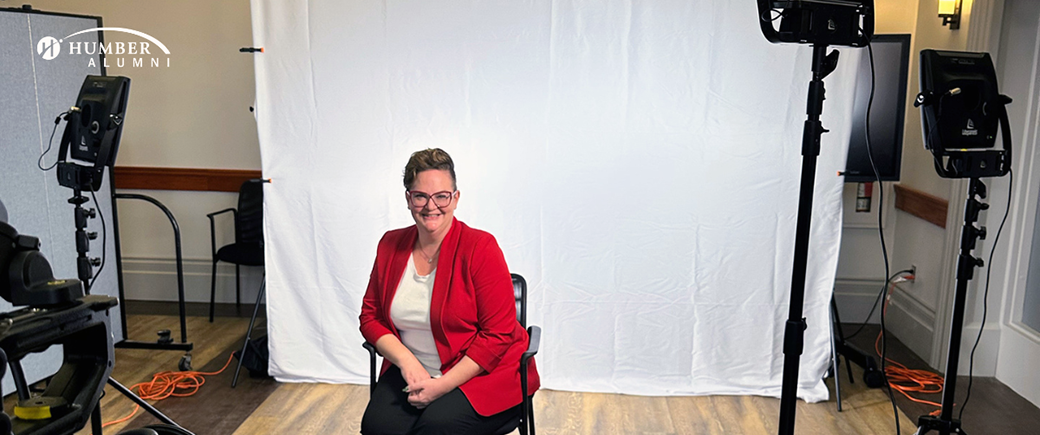
Orangeville Mayor Lisa Post surrounded by lights and filming equipment.

Step into the world of a mayor of one of Ontario's most charming places with Lisa Post, Bachelor of Community Development grad and Mayor of the Town of Orangeville.

Lisa has dedicated much of her political career to representing marginalized voices, building strong social policies and working alongside local organizations focused on culture, youth, empowerment and safety.

In this Alumni Spotlight, she discusses her academic and career journey, her 'Rooted In Community' motto, the impact of social media and some of her favourite things about her hometown.

View more alumni stories at humber.ca/alumni/ourstory.

Know a Humber grad with a great story to tell? Email us at alumni@humber.ca.

When:
February 4, 2025

These are the highlights of this month’s new and improved features in Blackboard Ultra that will be live Thursday, February 6. The most relevant updates are related to a few key key areas:

  • Instructional design
  • Tests & assignments
  • Communication & collaboration
  • and Gradebook

Learn more about the full update at Anthology's Blackboard website.

Instructional Design

Exclude descriptions from learning modules generated by AI Design Assistant

Anthology has added the option to exclude descriptions from learning modules generated by the AI Design Assistant. Instructors who want to write their own descriptions no longer have to manually remove them from auto-generated learning modules.

AI Design Assistant -- Set a larger maximum number of generated questions and learning modules

When using the AI Design Assistant, instructors can now set the number of questions generated for tests and question banks to a maximum of 20. The maximum number of learning modules that the AI Design Assistant generates also increased to 20. Generating more questions at once reduces the chance that similar questions will be generated.

Change folders to learning modules or learning modules to folders

Instructors can now change a folder to a learning module or a learning module to a folder in Blackboard. There are a few benefits of changing a folder to a learning module:

  • Adding thumbnail images: Learning modules come with thumbnail images, which provide a visually appealing course experience, whereas folders don't.
  • Forcing sequence: Instructors can force students to navigate learning modules in linear paths, which isn't possible in folders.
  • Modules have a progress bar: Learning modules have a progress bar for students that highlights the number of items that they need to complete and their progression on those items.
  • Previous and next navigation: Students can quickly navigate to the next or previous item in a learning module.

Course Content page, with the More options menu open and Change to Learning Module highlighted beside a folder

Improvement to rendering of uploaded files

Files uploaded by instructors to Blackboard now retain their original formatting and characteristics wherever instructors can upload files. Previously, formatting changes may have displayed with uploaded files, such as PowerPoints or Excel worksheets. With improved rendering, students can view files in their original format, leading to a better overall user experience.

Upload images to Documents using the new image block

Anthology has added an image block to Ultra Documents. Instructors can use image blocks to upload their own images, use the AI Design Assistant to generate images, or select images from Unsplash, which are royalty-free. Image blocks can be moved throughout a Document, just like other block types. Instructors have the option to resize images, set height, and maintain aspect ratios in image blocks. A dedicated image block makes adding images more apparent. Adding images via the image block also reduces white space around images and provides greater control over content design.

The menu for adding blocks to Documents, with Image highlighted

Tests & Assignments

Masking access codes for an assessment

When an instructor or exam proctor enters an access code for an assessment on a student's computer, the code is masked using asterisks (*******) to ensure enhanced security. Previously, the code was visible when entered on a student's screen, compromising the secure testing environment. An option to view the code is available but the default state keeps it hidden, providing better privacy and protection during testing.

Numbers in the Access Code field in the test panel for students is masked with asterisks

Communication & Collaboration

Improvements to avatar size and time stamp positioning for discussion replies

Anthology has adjusted the size of avatars and the position of time stamps to improve the user experience in Discussions. Replies to posts are now easier to identify and avatar sizes are consistent.

A discussion post, with a reply below. The avatars and timestamps are both highlighted.

Enhancements to course groups

To simplify group management and enhance usability for instructors, Anthology has made several improvements to course groups:

  • Activity-level groups are now course-level: All new groups are now course-level. Instructors can create course-level groups directly from a content item, eliminating the need to manage groups at the activity level.
  • More warnings and restrictions: To prevent the creation of empty group sets during group assignments, Anthology has added restrictions and additional warning messages. This helps instructors make informed decisions and avoid disruptions in group management.
     This group set has no groups. Add groups to assign content."
  • Simplified group creation: The option to reuse activity-level groups was removed. This change encourages instructors to focus on course-level groups and reduces confusion.

Gradebook

Excluded attempts removed from Needs Grading count

Instructors can choose to exclude attempts that they do not intend to grade. Excluded attempts are removed from the Needs Grading workflow and any gradebook calculations.

With this release, Anthology has ensured that excluded attempts are removed from the Needs Grading count in all gradebook views. This provides instructors with a more accurate overview of their outstanding grading workload.

Test Settings usability improvements

To enhance usability and improve the test-building experience, Anthology has streamlined the Settings panel for tests by removing the following assignment-specific options:

  • Collect submissions offline
  • Use grading rubric
  • Maximum points
  • 2 grades per student
  • Peer review

By simplifying the Settings panel, Anthology hopes to reduce complexity and save instructors time, allowing them to focus more on creating effective assessments rather than navigating through numerous options.

Test-specific settings removed from the assessment settings panel

Additionally, Anthology has updated the functionality for student visibility options and release conditions for tests. Now, instructors must add one or more questions to their test to make it visible to students or to add release conditions. This ensures that students only see assessments that they can actively engage with.

Improvements to grading interface

Anthology has implemented the following design changes:

  • Relocated the Previous Student and Next Student navigation controls next to the attempt grade pill and removed the gray bar that these buttons were on.
  • Replaced the Previous Student and Next Student buttons with <> arrows.
  • Moved the avatar, student name, and submission information to the existing black bar and removed the white bar where the information was previously listed.

This is what the grading interface will look like following the improvements to the grading interface:

Grading interface after design changes


Improved accuracy when uploading grades and feedback

Instructors can now upload grades and feedback for assignments, journals, and discussions with improved accuracy. Previously, when instructors uploaded grades, they were always stored as an override, which left the underlying attempts or submissions ungraded. This caused the Needs Grading and New Submission flags to remain visible, even when grading had been completed offline. For discussions and journals, discussion and journal grades can now be entered directly in the Grid view or Grades & Participation page with improved accuracy and consistency, too.

Uploaded grades and feedback are now correctly mapped to the corresponding attempt or submission whenever possible. This reduces confusion and provides better clarity for instructors.

Improvement to rendering in Bb Annotate

Anthology has enhanced how files submitted by students are rendered in Bb Annotate. Previously, formatting changes made grading more challenging for instructors. Now, files display with the exact same formatting as when they were submitted, ensuring a smoother grading experience.

Supported file types include:

  • PowerPoints
  • Excel worksheets
  • PDFs
  • Other common formats

Need support? Contact the Innovative Learning Support Centre. We are here to help!
When:
February 4, 2025

The SFQ Season is fast approaching! The Student Feedback Questionnaire (SFQ) invites students to provide anonymous feedback on their learning experience in support of our shared commitment to ensuring the quality of our students’ learning experiences at Humber every semester.

SFQ dates are dependent on the length of a course, opening to students about 70% of the way through the class and closing before the last week of classes. You can find the dates for a specific course using the SFQ Date Tool, but generally, there are two common timelines for SFQ Season:

  • For 14-week courses, SFQs will occur between weeks 10 to 13.
    • For the Winter 2025 semester, the start date is March 24, 2025 and the end date is April 15, 2025.
  • For 7-week courses, SFQs will occur between weeks 5 to 6.
    • For the Fall 2024 semester, the start date may be as early as February 7, 2025.

A week before the SFQ date in their course, the instructor will receive an email reminding them to add up to 6 personalized questions (three Likert scale questions and three written answer questions) to the SFQ that will go to their students. Instructors and students will receive reminders that the SFQs are available via email and the messaging tool in Blackboard.

The SFQ contest is now open for students, and will end on May 2, 2025. Students who complete their SFQs will receive an email upon completion for a chance to win an iPad Air 13 or an iPhone 16! The draw will take place on May 8, 2025, and the last date to claim prizes is May 16, 2025.

As a thank you when more than 50 per cent of the students in a faculty member's course complete the SFQ, the faculty member is automatically entered into a raffle for an on-campus food services gift card, or service at the Humber Room.

Please watch Communiqué for SFQ updates. Need additional help? Contact us in the Innovative Learning Support Centre!

When:
February 4, 2025

Here are the highlights of faculty questions from January. These are not necessarily the most frequently asked questions, but helpful for all faculty members to know!

Question: How do I setup the Gradebook and the Overall Grade?

Answer:

Innovative Learning has created a simulation to help you learn to setup your overall grade. If you prefer the written instructions they are below. Please make sure to setup your Gradebook as soon as possible, and make sure to upload your grades quickly, so that students have an idea of how they are doing in the course.

  1. At the bottom of the Gradebook, select Set it up. The overall grade page will open up.
    option to set up overall grade
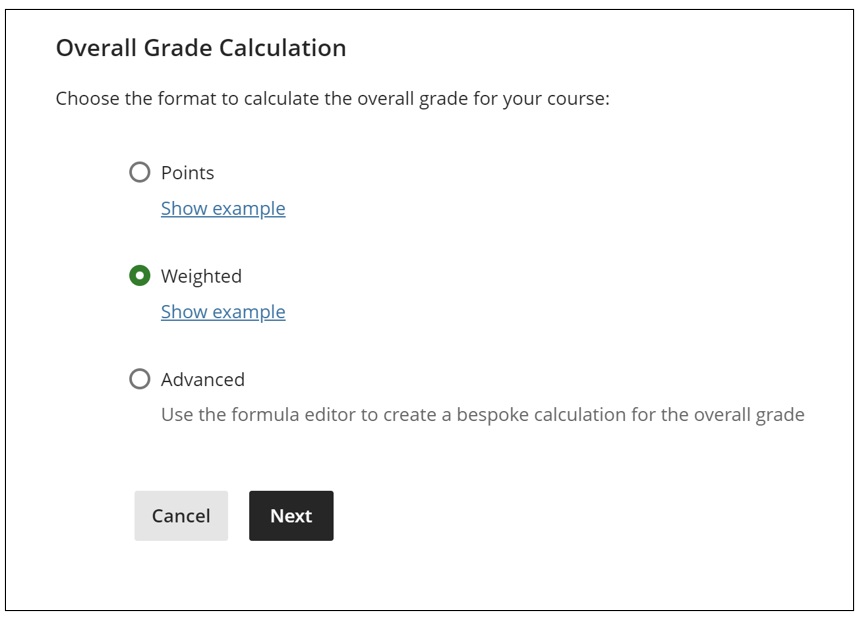
  2. Select Overall Grade Calculation. Please select Weighted.
    overall grade calculation
  3. Read the instructions located at the top of the screen. These instructions describe the function of each symbol within the overall grade calculation.
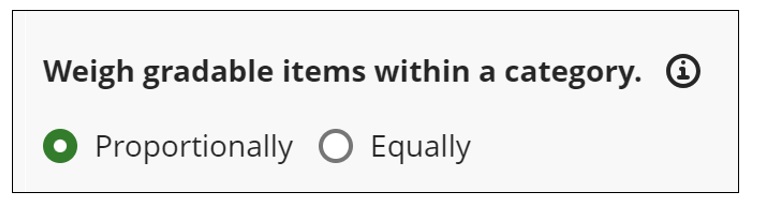
  4. Please select how gradable items within the category should be distributed. By selecting proportionally, items are distributed based on their total points. For example, an item with 100 points will have twice the weight of an item with 50 points. Equally will ignore the total point and equally distribute weight for each item.
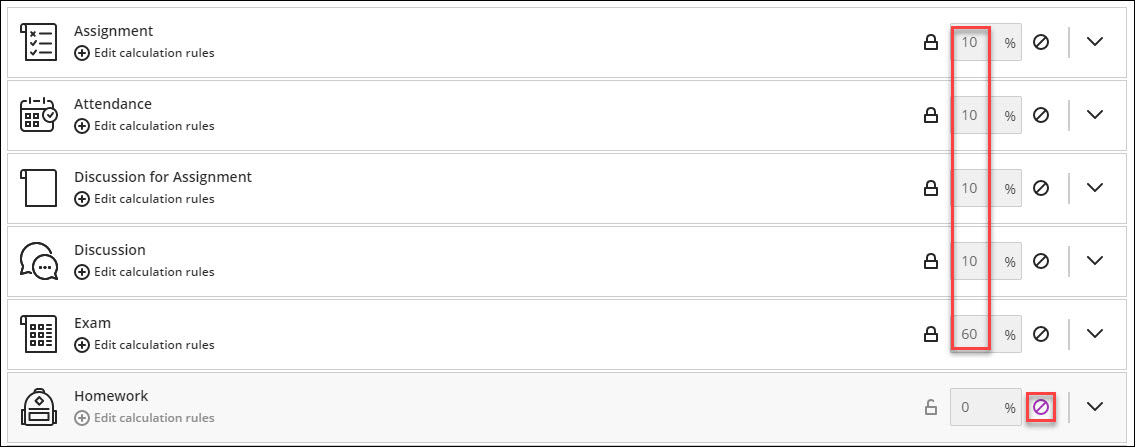
  5. If grading by category, input the correct weights of each category in their respective areas. Categories that are not being used can be exempted (grayed out row with a purple icon on the right as in the Homework category below).
  6. If grading by individual items, unlink them from their associated category. This can be done by selecting the dropdown of the category and selecting the unlink icon next to the item that needs to be separated.
  7. The item should now have a separate place to enter it’s individual weight.

    Note: The overall grade allows you to include both category and individual items in the calculation if desired.
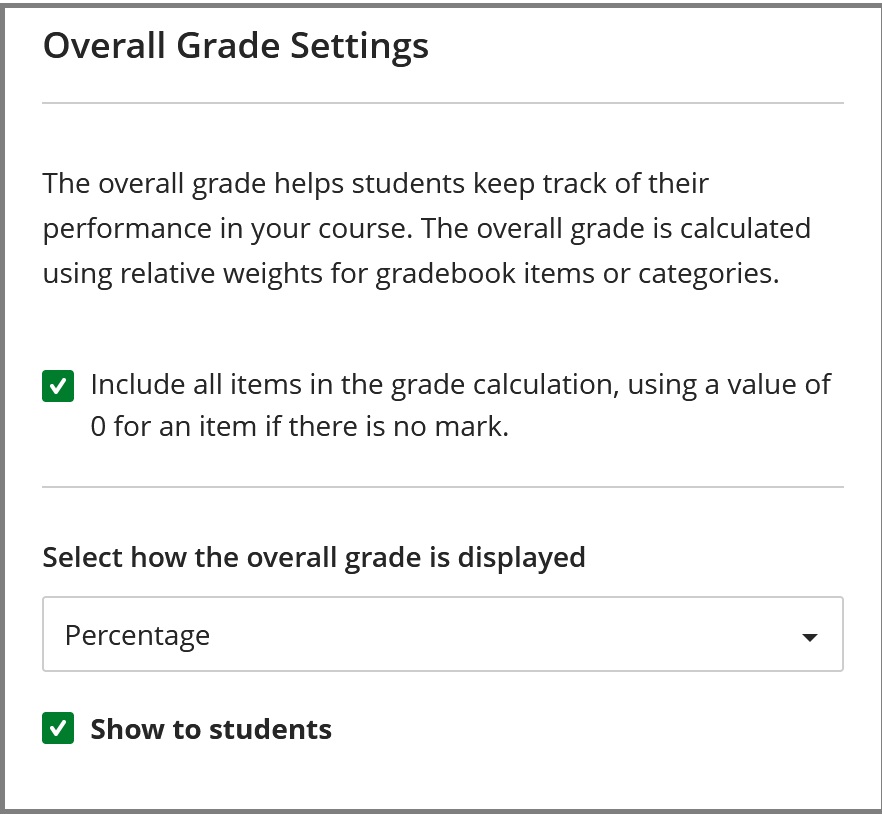
  8. Once all the appropriate weights have been entered, there are additional settings to the right of the screen. Here, you can dictate whether you want overall grade calculated based on the total of points earned.
    Note: if these settings are not selected, the overall grade calculation will be a non-running total, and students are not able to view it. If you select Percentage, you can show the current running total in percentage.
    Overall grades settings

You can learn more about dropping the lowest grade a student received in a course, as well as overriding the overall grade for a student.

Question: How do I disable automatic zeroes for student submissions?

Answer:

  1. In the Gradebook, select the Settings icon. The Gradebook Settings panel will open on the right.
    Two arrows next to each other horizontally, one pointing up and the other down. To the right of the arrows is a gear/wheel icon.
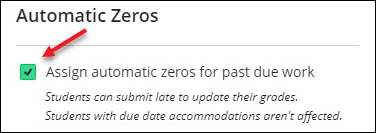
  2. Near the middle of the panel is the "Automatic Zeros" option. Deselect the green arrow.
    A green arrow next to an option that says "Assign automatic zeros for past due work".
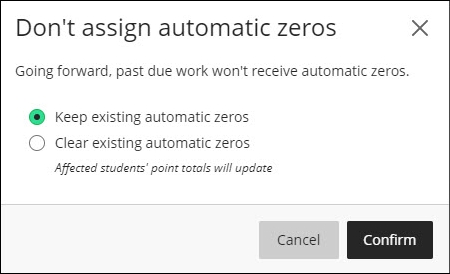
  3. An option will be given to "Keep existing automatic zeros" or "Clear existing automatic zeros". After making the preferred selection, press confirm.
    Two options are shown, one of them is "Keep existing automatic zeros" and the other is "Clear existing zeros".

Question: How do I setup accommodations in Blackboard?

Answer:

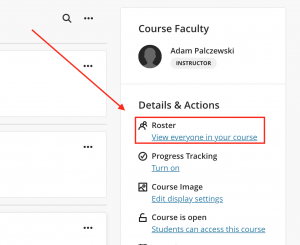
  1. Access the Roster of your course. The Roster is located on the right hand side, under the Details & Actions menu.
    The Roster option appears under the Details & Actions sidebar.
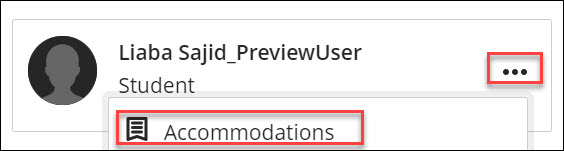
  2. Locate the student that needs an accommodation and select the three dots > Accommodations.
    Accessing the Accommodations panel for a student.
  3. On the Accommodations panel, select the necessary accommodation for the student:
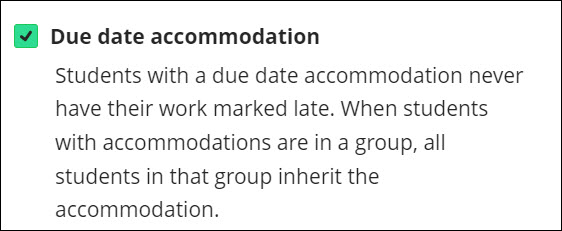
    1. Due date accommodation: Students with this accommodation will never have their work marked late.
      Purpose of the Due Date Accommodation.
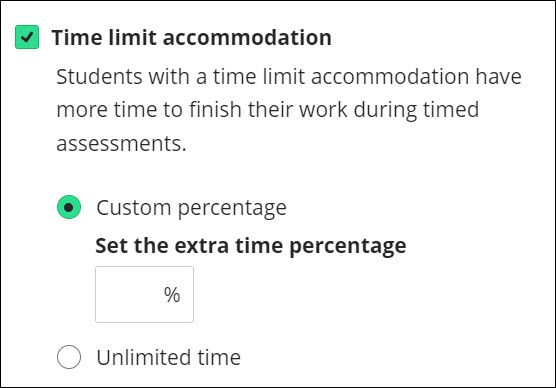
    2. Time limit accommodation: Students with a time limit accommodation have more time to finish their work during timed assessments.Purpose of the Time limit accommodation, allows for Custom and unlimited time options.
      • Custom percentage can be selected if the student requires a specific time limit for their assessments.
        • To give the student time and a half on assessments, please enter 50% in the extra time percentage box.
        • To give the student double time on assessments, please enter 100% in the extra time percentage box.
      • Unlimited time can be selected if the student requires no time limit for their assessments.
  4. After the accommodations have been applied, a purple flag icon will appear next to the student’s name.
    Purple flag added to student's name indicating an accommodation has been set.
  5. These accommodations can be edited at any time. Please note that when a due date or time limit accommodation is deleted, previously submitted work for assessments may then be flagged late.


Question: I want to add myself to a course as an instructor. How do I do this?

Answer:

Instructors are added to live Blackboard courses by the Faculty Scheduler in Banner or Destiny 1. Once they are added through Banner or Destiny 1, access is immediate. Associate deans can request the instructor be assigned through their faculty scheduler. Only faculty who are assigned teaching contracts can be assigned "instructor" status in Blackboard.

The Innovative Learning Support Centre can only add instructors to courses from a previous semester only with approval from an associate dean for the purpose of accessing old course content.

The Innovative Learning Support Centre can manually add users to current courses with the Course Builder role.  With this role they will be able to access the course but are limited in functions (for example they will not have gradebook access). However, they still can perform a course copy!

If you want to request to be added as an instructor or course builder, follow this link to the Innovative Learning Support Centre, where you can complete a Support Request.

Question: How do I copy tests, assignments, and other individual content items between courses?

Answer:

  • Innovative Learning recommends that you copy the entire course rather than just the content in the course. Copying only the content may result in styling and formatting issues, because copying individual items may not automatically copy over items referenced by the selected item. However, copying individual course items is possible and does work when done carefully. Learn more about copying full courses.
  • You can only copy materials into a course if you have the role of instructor, teaching assistant (TA), or course builder.
  • Hidden courses will not be selectable in the Copy Content panel.
  • Copying does not include student-specific data (e.g. test and assignment submissions, grades, discussion posts, attendance data).
  • Content migrated from one course to another always needs to be reviewed and tested (i.e. ensure all the settings were retained in the migration process) prior to publishing them, particularly when Blackboard integrations like Respondus are involved.

Here is how you copy individual content items from one course into another:

  1. Open the destination course – the course where you want the copied content to go.
  2. There are two locations you can go to Copy Items Page.
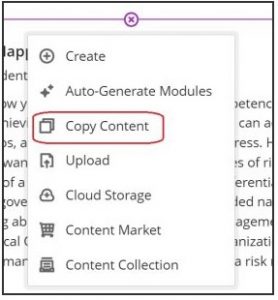
    One is from the middle of the page with a plus icon. By clicking the icon, you will see a menu where you can click Copy Content to go to Copy Items Page.
    Copy Menu
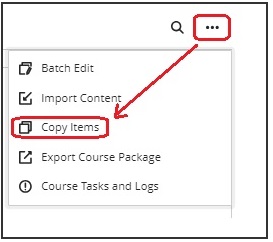
    Another is from the top-right corner. Select three dots and you will see a menu where you can click Copy Items to go to Copy Items page.
    Copy Menu
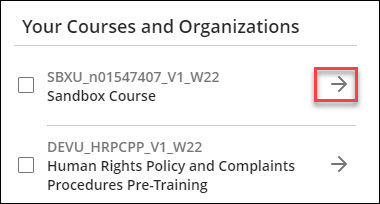
  3. Locate the course that needs to be copied from and select the arrow next to its name. Note: Do not select the checkbox next to the course name if you are only making a copy of items. Selecting the checkbox results in copying over the entire course.
    The names of two courses with an arrow next to each.
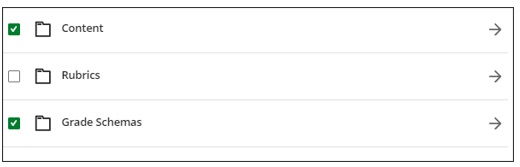
  4. The course will open into several parts depending on what are contained in the source course. “Content”, “Discussions“, “Announcements”, "Question Banks", "Rubrics" and “Grade Schemas” can be copied. Select the arrow next to the part that contains the needed content. This should reveal the individual items within that section.
    Select Items
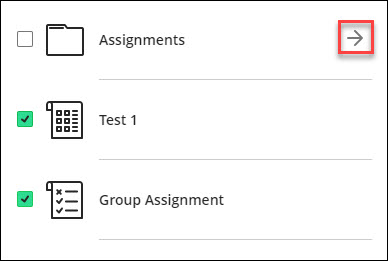
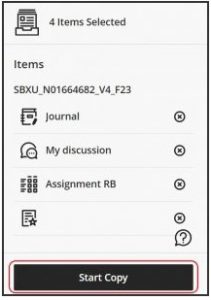
  5. Select the box next to all items that need to be copied over. Note: Folders and Modules can be opened further to select content inside. Selected items are shown on the right side of the panel.
    An assignment folder with an arrow next to it, a test and assignment below the folder
  6. Once you have made the necessary selections, click on "Start Copy" at the bottom of the right panel. It may take a while to complete the copy process. Once it is finished, you will be able to see all the items copied from the selected course.
    Start Copy

Need support? The Innovative Learning Support Centre is here to help!

When:
February 3, 2025

Please share this message widely!

Please be advised that all courses for Fall 2023 and prior terms, including DEVU and SBXU courses, will be removed from Blackboard on Friday, March 7 at 4 p.m.

Why are courses being removed?

Humber removes courses one year after final grades are submitted or courses are created (for DEVU and SBXU courses). For the current Winter 2025 semester, courses from the Fall 2023 semester will be removed. Courses from this Winter 2025 semester will be removed in Summer 2026. Please be aware that PMR and ADR courses are deleted after 3 years. This is standard practice to ensure we maintain enough space and capacity on the Learning Management System, so these clean-ups are scheduled following good practices for data and storage management.

How do I back up and save my course for future use?

We recommend faculty back up and archive Blackboard courses at the end of each semester. Most course sites take no more than 10 minutes to archive, and OneDrive is readily available to all faculty for file storage.

What if I need help backing up my course?

Support for OneDrive is available from ITS, and support for learning how to back up and archive courses is available from the Innovative Learning Support Centre.

When:
February 3, 2025
Contact:
Jener Gurrea
Posters/Attachments: Event Poster
Micro-credential

This program introduces high school students to fundamental STEM concepts, focusing on mechatronics and automation, to spark their interest and build a foundation for future studies or careers in STEM fields. Students will develop skills such as understanding pneumatics, sensors, and control technology, programming circuits with FluidSIM, building models, and learning industrial automation terminology. 

Schedule: 

  • March 10-11, 2025 
  • March 13-14, 2025 

Location:  

  • Humber Polytechnic North Campus and Barrett Centre for Technology Innovation 

Registration

Note:  

  • Humber staff receive a 10 per cent discount, use BCTIHUMB10 before checking out.  
  • Lunch and transportation are not included. 

Please email jener.gurrea@humber.ca if you have any questions.

When:
February 3, 2025
Contact:
Bri Gardner-Ford
The words Depth: FMCAD Faculty Exhibition on a black background

Humber Galleries is proud to present Depth, a group exhibition featuring works by Humber FMCAD faculty members.

Running from February 3 to March 28, 2025, the exhibition features work from the personal artistic practices of 10 FMCAD faculty members showcasing works in a range of mediums including, animation, drawing, installation, painting and photography.

Depth is on display now in the L Space Gallery, Monday to Friday from 12 p.m. to 5 p.m.

When:
February 3, 2025

The Sip & Chill Mobile Resources Cart will be at the Lakeshore Campus in February.

Sip & Chill Mobile is an in-person service designed to bring essential information directly to students in their primary campus setting – the classroom.

How does it work?

Professors and faculty members can schedule the cart to arrive during class breaks. The Sip & Chill Mobile Resources Cart will be present in the classroom, offering students access to information about resources, upcoming events, giveaways, and a complimentary beverage.

Lakeshore, get ready! If you haven't booked a drop-in yet, now is your chance.

How to request a visit?

For February, Lakeshore professors and faculty members can arrange for the Sip & Chill Mobile Resources Cart to arrive during class breaks by booking online.

Please note that reservations are limited to one visit per class per semester.


When:
February 3, 2025
Contact:
Candace Iron
Posters/Attachments: Event Poster
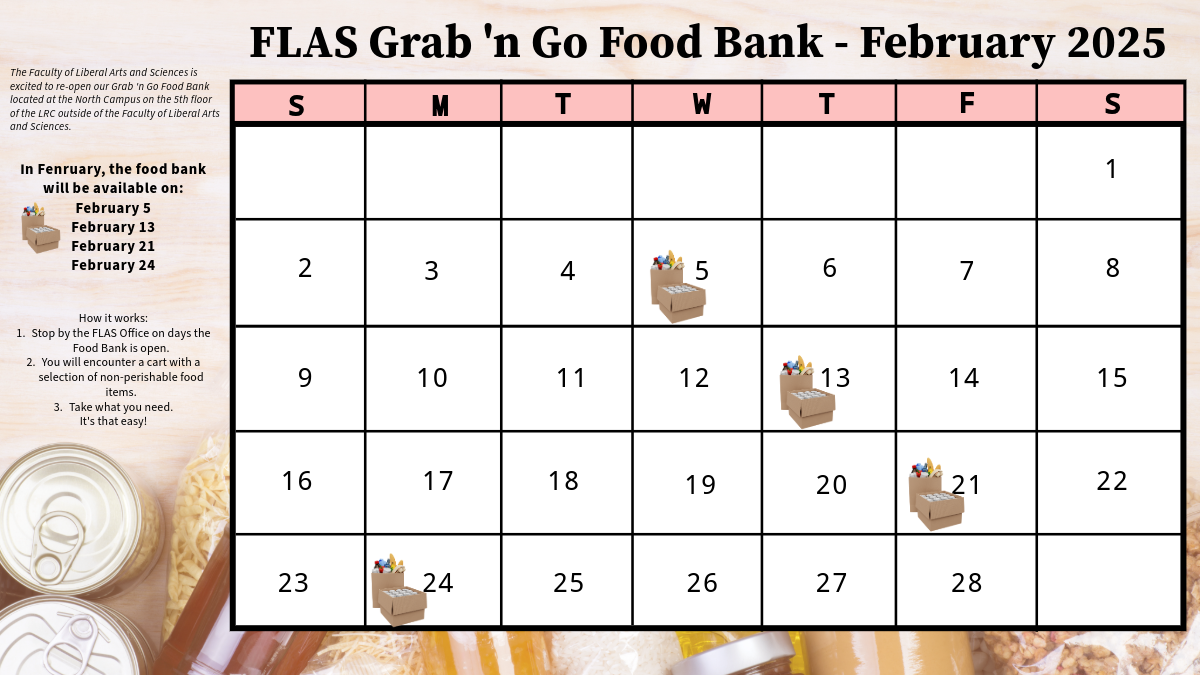
Calendar with food boxes

This week, the FLAS North Campus Grab 'n Go Food Bank will be open on Wednesday, February 5 from 9 a.m. to 4:30 p.m.

At the North Campus, the Grab 'n Go Food Bank cart is located on the 5th floor of the LRC outside of the Faculty of Liberal Arts and Sciences.

Please note that for February, food will be available on:

  • Wednesday, February 5
  • Thursday, February 13
  • Friday, February 21
  • Monday, February 24

How does the Food Bank work?

  1. Members of the Humber community who are experiencing food insecurity or hardship are encouraged to stop by the FLAS Office during business hours on the dates listed above.
  2. There they will encounter a cart with a selection of non-perishable food items.
  3. They can take what they need. It's that easy!

Can I help?

The FLAS Grab 'n Go Food Bank is a faculty-driven initiative intended to help fight food insecurity in our Humber community. If you would like to contribute, food donations are always welcome and appreciated. All donations can be dropped off at the Faculty of Liberal Arts and Sciences.

Together, let's help fight food insecurity and ensure all members of our Humber community have access to food.

Pages